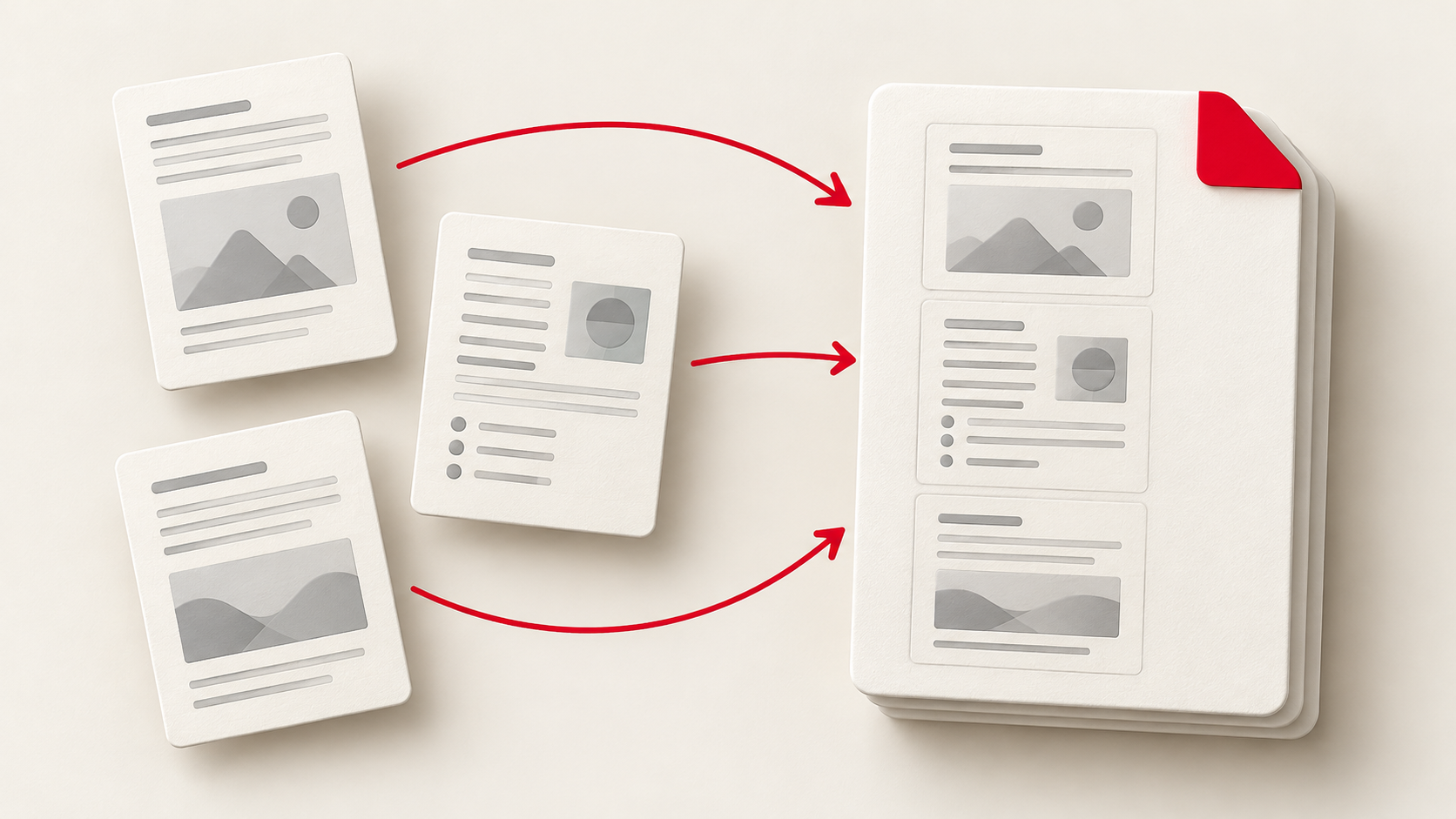
You have everything ready to send: an application form, a résumé, and a couple of supporting documents. The only problem is that they’re sitting in separate PDF files. If the recipient wants one attachment, or you want them to read the pages in a sensible order, sending a pile of files isn’t ideal.
A PDF merger can turn those separate pieces into one document. Our PDF Merger also lets you check every page before downloading, so you can fix the order instead of hoping the files happen to line up.
Decide on the reading order first
Think about what the recipient should see when they open the file. For an application, that might be the form first, then a résumé, then supporting certificates. For a project handover, it might be the main report followed by appendices. Use the order that makes the document easiest to follow or matches the recipient’s instructions.
It helps to check whether every page belongs in the final copy. An old draft, a blank page, or a duplicate attachment can be easy to miss when the documents are separate. Merging is a good time to spot them.
Add the PDFs and review the pages
Open PDF Merger and choose your files, or drag them onto the page. Every page appears as a thumbnail, with a label showing which file and source page it came from. That makes it easier to see what you’re moving, even when several files have similar names.
You can move an entire file if its pages already belong together. You can also move individual pages across files to put them in any order. The controls work with a mouse, touch, or keyboard.
If you need to do both, arrange the files first, then fine-tune individual pages. Moving a file groups its pages together, which is handy for broad changes but can rearrange a page-by-page sequence you’ve already made.
If a page is sideways, rotate it in 90-degree steps. You can remove pages you don’t need or duplicate a page that should appear twice. The tool also offers Reverse order and Reset pages if you want to change direction or restore the original arrangement.
Merge and check the result
Once the thumbnails show the order you want, press Merge PDF and download the combined file. The pages are copied from the originals rather than turned into new images. That preserves their visual quality, and text that was selectable in a source PDF stays selectable in the merged copy. A scanned page doesn’t suddenly gain searchable text, though; merging doesn’t perform OCR.
Open the download before sending it. Check the first and last page, scan the page order, and make sure any rotated pages face the right way. Compare the page count with what you expected, then give the finished file a clear name. If it contains personal information, check that you’re sharing only the pages the recipient needs.
Know the practical limits
PDF Merger accepts up to 20 PDFs, each up to 100 MB, with no more than 500 pages in total. Duplicated pages count toward that total. Encrypted or password-protected PDFs can’t be opened.
Some PDF features need extra care. Bookmarks from the original files aren’t kept, and interactive form fields may stop working after the merge. If the recipient must fill in a form, test the downloaded copy or send the form separately in the format they requested.
The files are read and merged in your browser; they aren’t uploaded to our server. When the combined PDF looks right, you have one attachment that’s easier to review and share. Try PDF Merger the next time your documents need to arrive as one tidy file.