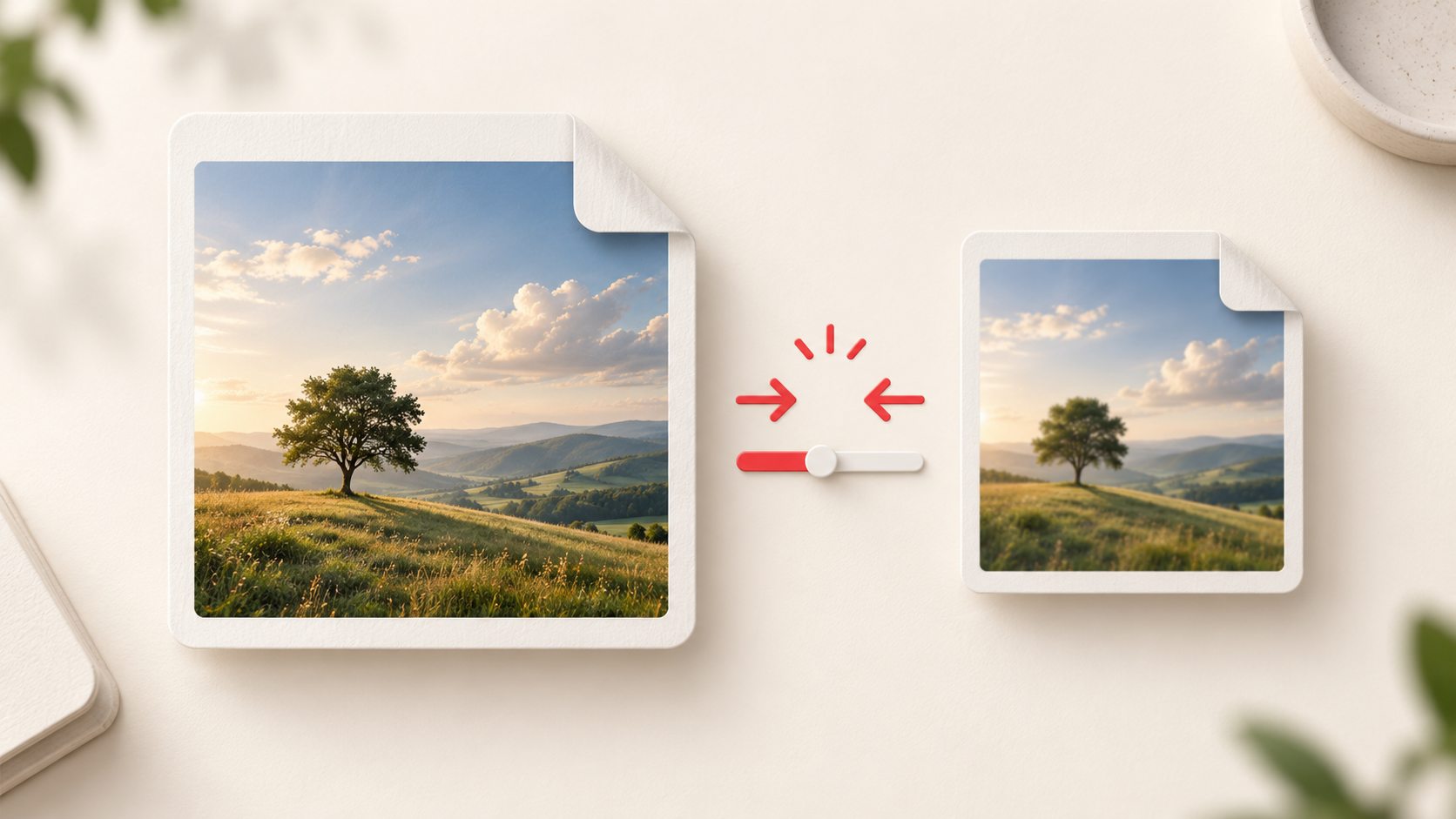
You have the right photo, but the upload form has one more rule: the image must be smaller. Maybe it’s a job application, an online form, or a website with a strict file limit. You could keep trying random export settings, but it’s easier to change one thing at a time and check the result.
Our Image Compressor & Converter lets you adjust format, quality, and dimensions in your browser. The aim isn’t to make every photo as tiny as possible. It’s to get a file the site accepts while keeping the parts of the image that matter clear.
Start with the upload requirements
Before changing the image, check what the destination accepts. Does it allow JPEG, PNG, or WebP? Is there a maximum file size in KB, a required width or height, or both? A smaller WebP is no help if the form only accepts JPEG.
Then think about how the picture will be used. A photo for a small profile thumbnail usually doesn’t need the same dimensions as an image someone will zoom into. If fine print or small details matter, give them a careful look after compression.
Pick a format that fits the image
JPEG is a practical choice for ordinary photos, but it can’t keep transparency: transparent areas turn white. WebP is another option when the destination accepts it, and it also offers a quality setting. Neither format guarantees a particular file size for every image.
PNG is useful when you need transparency or crisp graphic edges. In this tool, PNG doesn’t use the quality slider or the maximum-KB setting. If a PNG is too large, resize its dimensions or try JPEG or WebP if the destination allows the change. Check any transparent parts before switching to JPEG.
Change quality and dimensions with a light touch
A phone photo can be far larger in pixels than an upload form needs. In the tool, you can resize by percentage, set width and height, or limit the longest side. Keeping the aspect ratio stops the picture from being stretched. Start with dimensions that suit the destination, then look at the new file size.
For JPEG and WebP, lowering quality can reduce file size too. Try a moderate adjustment first. If the photo starts to look soft around faces, text, or detailed edges, move the quality back up or use larger dimensions. There’s no one setting that looks best for every photo.
If the form gives a maximum size in KB, turn on Limit file size and enter it. The tool tries lower quality first, then smaller dimensions if needed. It may still miss a very strict target; when that happens, it marks the smallest result it found instead of pretending the limit was met.
A quick workflow before you upload
Open Image Compressor & Converter and add a PNG, JPEG, or WebP file. You can add up to 30 images, with one set of settings applied to all of them. Each image can be up to 50 MB and 50 megapixels.
Choose an accepted output format, adjust the dimensions or quality, and press Compress. Compare each original with its result: the tool shows both sizes and flags a result that is larger than the source. If you change a setting, compress again so the download reflects your latest choice. Download one image, or download multiple results together as a ZIP.
Open the downloaded image before uploading it. Check the details you care about, and confirm that its format, dimensions, and file size meet the form’s rules. Your images are processed in your browser rather than uploaded to our server, and the new files don’t include the originals’ EXIF or GPS metadata.
When a photo is too large, a few careful changes often beat pushing every slider to its lowest value. Try Image Compressor & Converter, compare the result, and send a file you’re happy for someone else to view.