Your PDF is ready. You’ve checked every page, named the file, and found the upload button. Then the website tells you the file is too large.
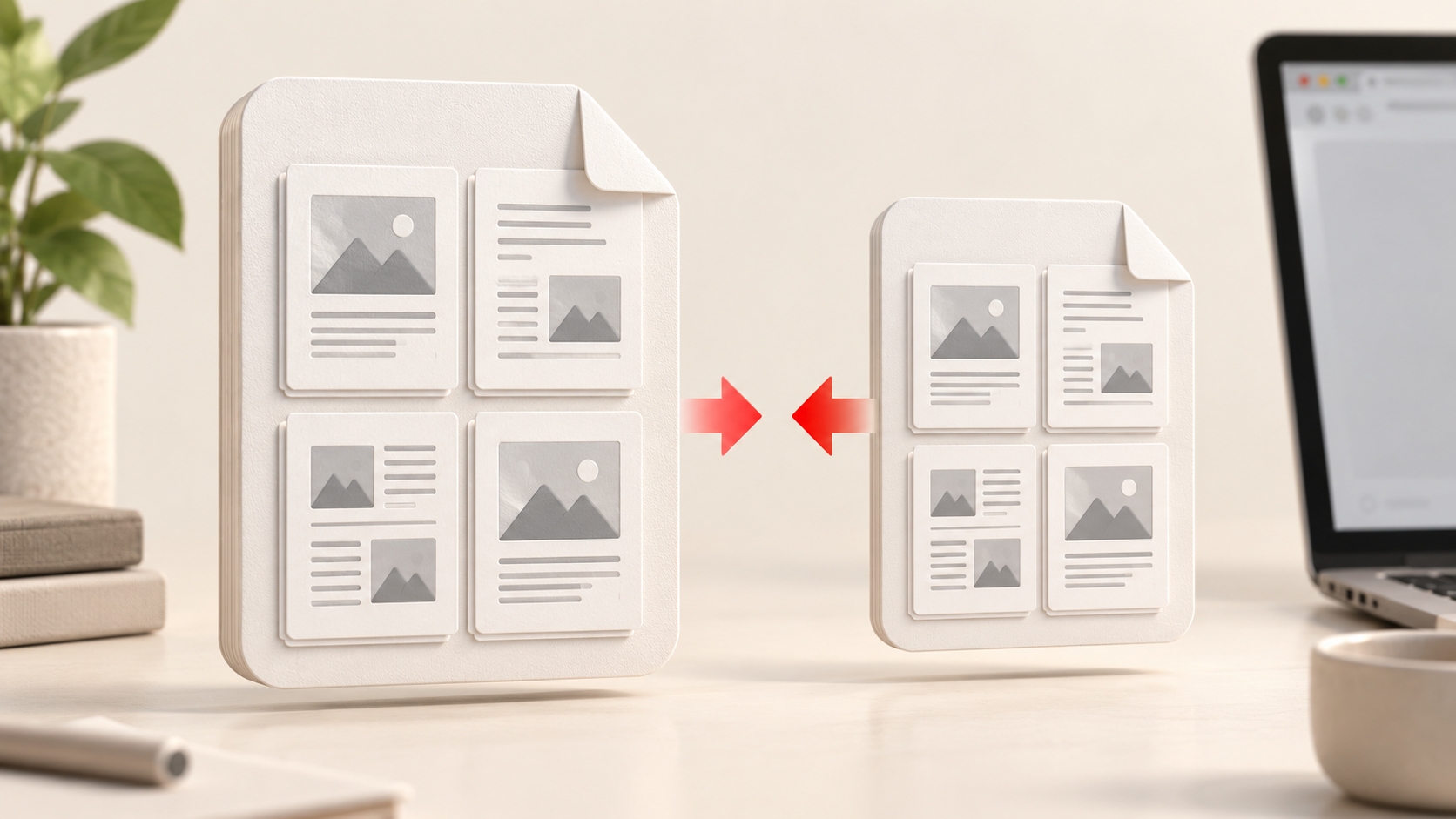
It’s a familiar last-minute problem, especially when a PDF contains photos or scanned pages. You can try reducing its size without starting the document over. Our PDF Compressor works in your browser and lets you choose how you want to compress the file.
Why is the PDF so big?
A PDF can contain much more than text. A scan may be a full-page image on every page, and a report may include large photos or graphics. Those images can make the file heavier even if the document looks simple when you open it.
That’s also why compression results vary. A PDF that’s mostly text may have little to reduce. A file that already uses compact images might not get much smaller either. The useful question is: What needs to stay usable in the file I send?
Choose Smart when the PDF still needs to act like a PDF
If someone needs to search the document, select text, follow a link, or use a form, start with Smart mode. It recompresses supported images while keeping selectable text, vector graphics, links, bookmarks, and forms.
Smart is a sensible first try for reports, applications, and documents with both text and photos. It doesn’t rewrite every image in every PDF: some special image formats are left as they are. If your file is already efficient, the size change may be small.
Choose Strong when a smaller scan matters more than searchable text
Strong mode takes a different approach. It turns each page into a JPEG image in a new PDF. That can work well for scanned documents, which are already made up largely of page images.
There’s a tradeoff. After Strong compression, you can’t select or search the text. Links, bookmarks, and forms are removed too. If the recipient needs any of those features, use Smart instead. If they only need to view a scan and the file is too large, Strong may be worth trying. Open the result and make sure the pages are still clear enough to read before sending it.
How to compress your PDF
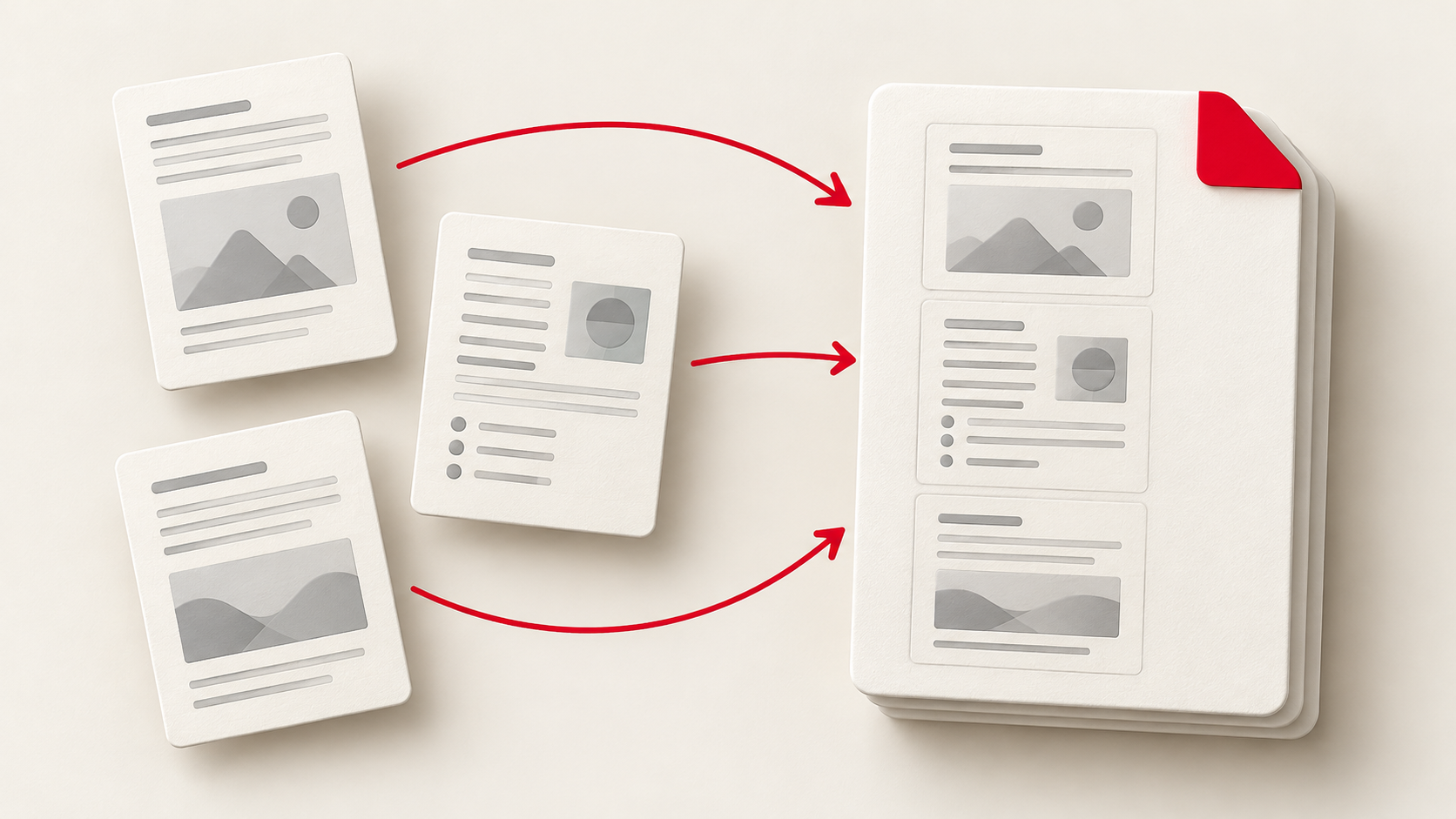
Open PDF Compressor and choose your file, or drag it onto the page. You can add up to 20 PDFs in one session, with a limit of 100 MB per file. The same settings apply to all files you add. Password-protected or encrypted PDFs can’t be compressed.
Pick Smart or Strong, then select a compression level. Balanced is the default. Light keeps more image detail; Maximum aims for smaller images with softer results. You can also set the resolution and JPEG quality yourself if you need more control.
Press Compress and compare the original and result sizes shown for each file. Download a result on its own, or download all the results as a ZIP. If compression would make a file larger, the tool keeps the original instead.
One last check before uploading
A smaller file is only useful if the recipient can still use it. Reopen the download and check the pages, especially small print, signatures, charts, and scanned text. If a page looks too soft, try a lighter preset. If search or forms have stopped working, switch from Strong to Smart.
Your PDFs are processed in your browser; they aren’t uploaded to our server for compression. When your copy looks right and fits the upload limit, you’re ready to send it. Next time a website rejects a large PDF, try PDF Compressor before rebuilding the document from scratch.