You need to send a document, so you take a quick photo with your phone. Then you look at it: the page is tilted, the desk is visible around the edges, and a shadow runs across the text. It’s readable, but it doesn’t look quite ready to share.
You don’t need a scanner on your desk to fix that. And you don’t need to install another app on your phone. Open our Document Scanner in your browser, take a photo or choose one you already have, and turn it into a cleaner PDF or image.
Scan without adding another app
When you only need to scan a form, receipt, or letter now and then, installing a dedicated app can feel like an extra step. It also takes up storage space on your phone.
Document Scanner works online in your phone browser. Open the page when you need it and tap Take photo to use your phone’s camera, or Choose images if the photos are already in your gallery. There’s no scanner app to install and no account to create.
You can use it on a computer, too. Choose your images or drag them onto the page, then follow the same steps.
Make that phone photo look more like a scan
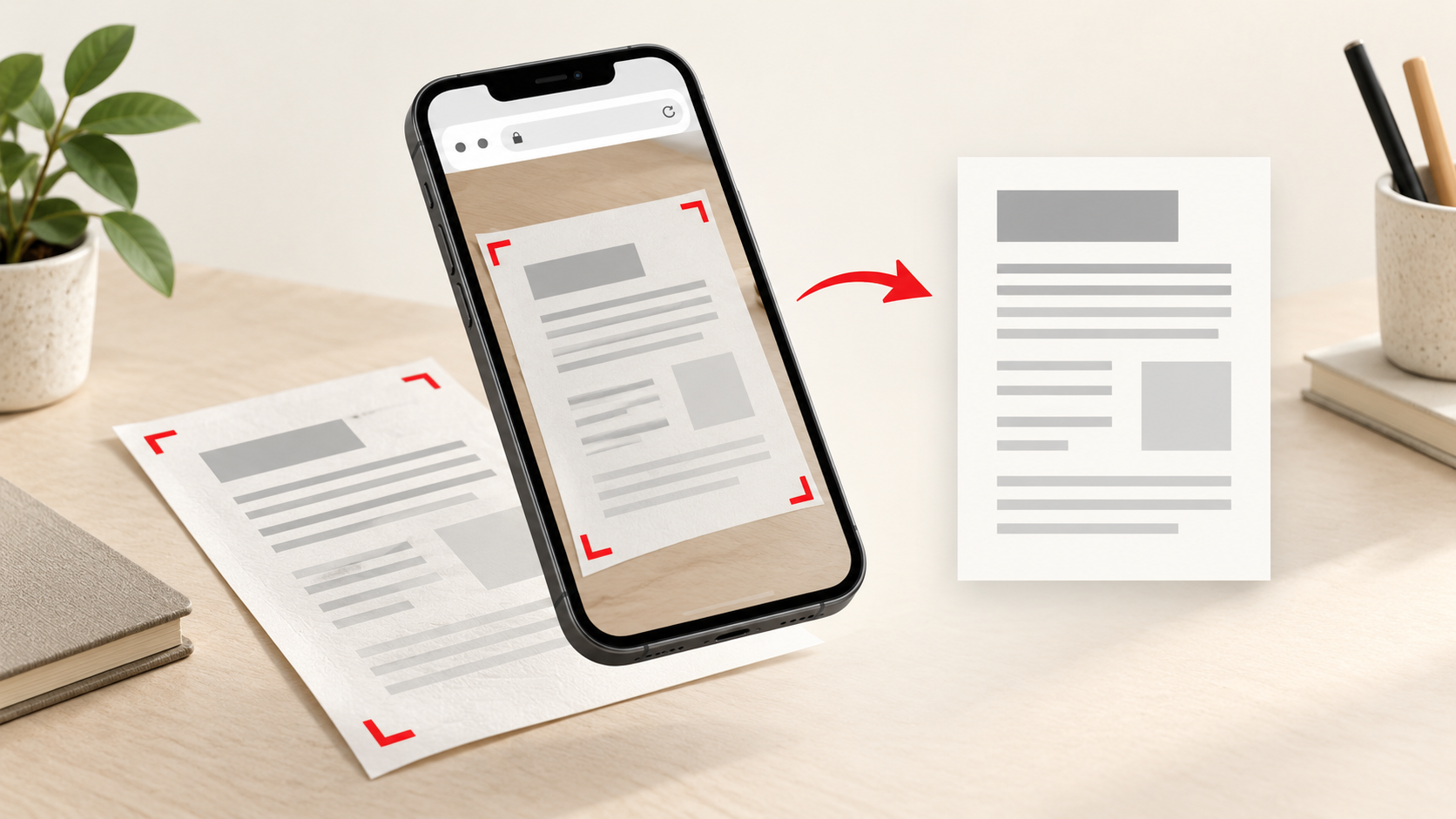
A photo often includes more than the document: part of a table, a little too much background, or a page photographed from an angle. Document Scanner looks for the page edges and lets you check all four corners. If it misses one, you can drag that corner into place yourself.
The tool then corrects the perspective, turning the selected area into a flat page. You can rotate a page and choose how it looks: Auto helps reduce shadows and brighten the paper, Grayscale keeps things simple, and Black & white works well for clear printed text. If you want the photo’s colors without those changes, choose Original.
For some printed pages, the scanner can also gently straighten a small tilt or curve. This depends on how clearly the text appears in the photo, so it’s still best to lay the paper on a contrasting surface, use even light, and get all four corners in the shot.
Keep your pages together
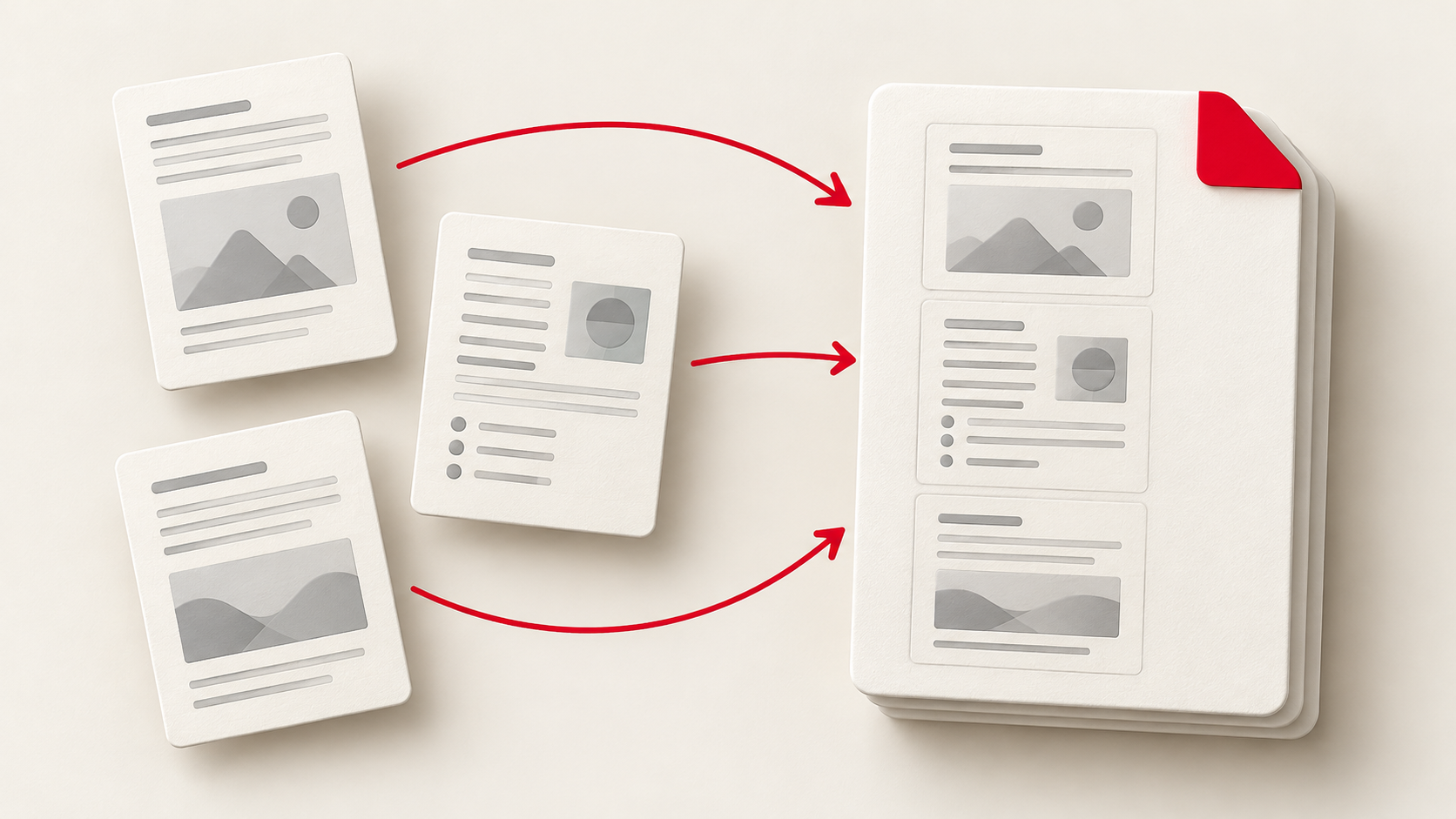
Scanning more than one page? Add up to 30 photos in a session. You can review each page, change its order, rotate it, and adjust its corners or appearance before downloading.
When everything looks right, download one PDF with the pages in the order you chose. You can use a page size that matches the scan, or place the scans on A4 or Letter pages. If you need separate image files instead, download those. Multiple images come together in a ZIP file.
That gives you a straightforward way to prepare a multipage form or a stack of notes without sending a collection of crooked photos.
Your photos stay on your device
Documents can contain personal information, so where they go matters. Document Scanner processes your photos in your browser. The photos are not uploaded to make the scan, and the tool does not save them after you leave the page.
There is one useful limit to know before you share the result: the scanner does not use OCR. A PDF you download contains images of your pages, so its text won’t be searchable or selectable. If you need a clean copy to view, print, or send, it can do that job; if you need editable text, you’ll need an OCR tool.
Next time a document needs to leave your desk, try taking a photo first. Open Document Scanner, tidy up the pages, and download the format you need—without making room for another app on your phone.