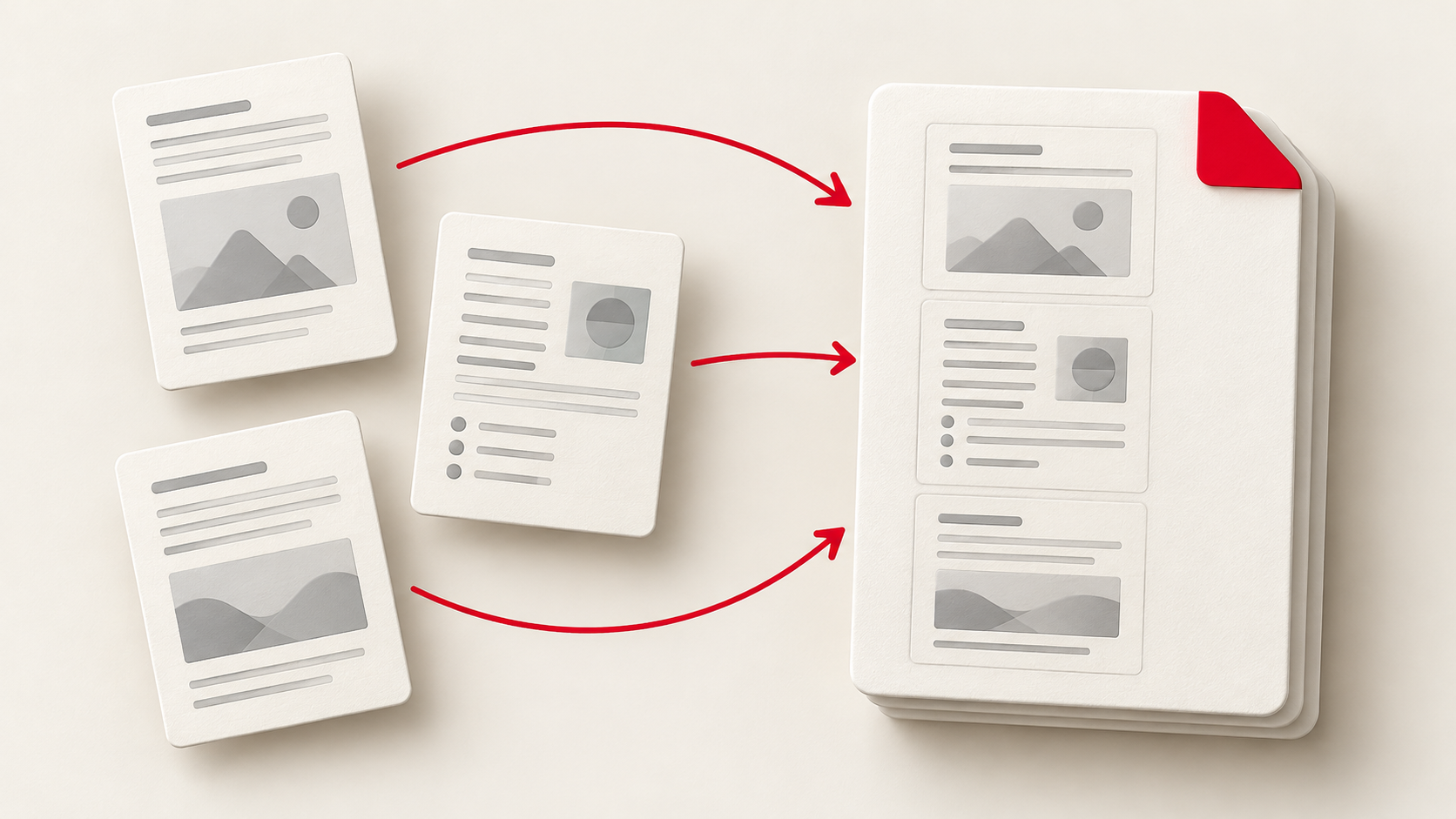
Uploading a document can take seconds. You choose a photo of your ID card or a PDF bank statement, tap Upload, and move on. But that file may show more than the recipient needs: an account number, home address, signature, or details on another page.
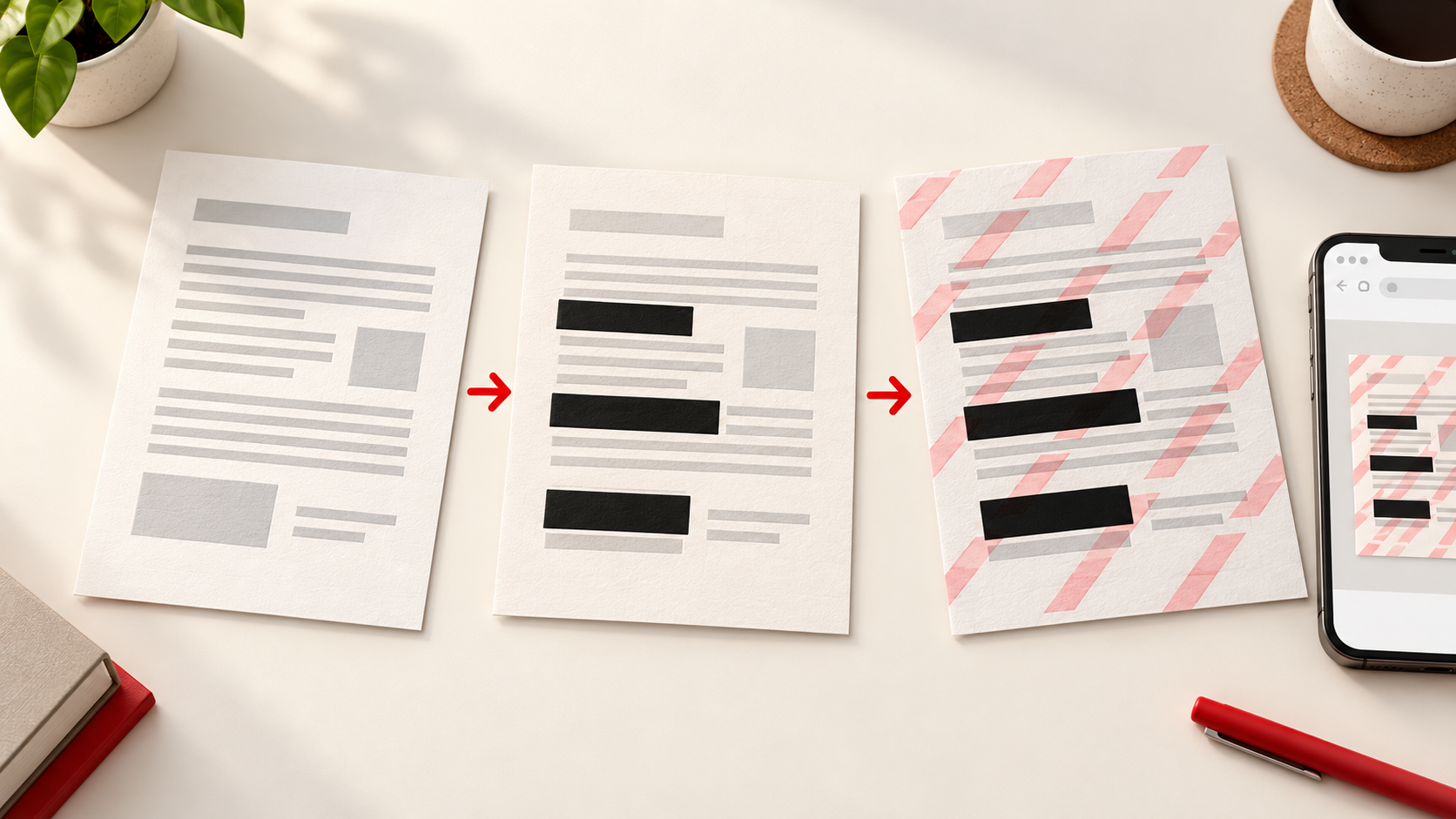
A quick check before uploading gives you more control over the copy you share. Two useful steps are redaction, which removes details you don’t need to disclose, and watermarking, which marks what a particular copy is for. They do different jobs, and using them together can make a document more appropriate to share.
First, decide what the recipient needs
Start with the request itself. Does the recipient need the whole document, or only enough information to verify your name or a particular transaction? Their requirements matter: covering a field they need may cause the document to be rejected.
Once you know what must stay visible, look at everything else. A bank statement might contain transactions unrelated to the request. An ID photo might show details the recipient hasn’t asked for. Check every page, including headers, footers, and repeated numbers. The goal is to share what’s required without automatically sharing everything that happens to be on the file.
Redact the details you don’t need to share
Putting a black rectangle over text in an ordinary PDF editor can be misleading. In some files, the text remains underneath the rectangle and can still be selected or copied.
Our Redact tool handles the downloaded result differently. Draw solid boxes over details in an image or PDF, then download a new file. For a PDF, pages with redaction boxes are rebuilt as images with those boxes applied, so the covered content on those pages is not left underneath as selectable text. Pages without boxes are copied unchanged, which is why checking every page matters.
The tool can find matching text in PDFs that have a text layer, but it doesn’t perform OCR. For a scanned PDF or document photo, place the boxes yourself. Even when search finds a match, review its position before downloading. Then open the downloaded file and check that the right details are covered and the required ones are still readable.
Then mark what the copy is for
Redaction answers, “What should this person be able to see?” A watermark answers a different question: “Who was this copy prepared for, and why?”
With our Watermark tool, you can add text such as “For account verification at Company X only” and include a date. Make it specific to the recipient and purpose, while keeping any information they need to read visible. You can place the mark once or repeat it across the page.
A watermark provides context; it isn’t a guarantee against misuse. Someone may be able to crop or retouch a visible mark. For PDFs, the tool’s Flatten pages option makes the watermark part of each page image. The Keep text option preserves selectable text but puts the watermark on a separate layer that a PDF editor can remove. Choose the output that fits what you need to share.
Give the final file one more look
A practical order is: check the recipient’s requirements, redact unnecessary details, download and inspect that result, then add a purpose-specific watermark. Open the final download before uploading it. Look for missed pages, boxes in the wrong place, or a watermark that makes important details hard to read.
Both tools work in your browser and process the document without uploading it to our server. Once you upload the finished file to another service, that service’s handling of the file is a separate matter—so make sure the copy you send is the one you intended.
The next time someone asks for a personal document, take a minute before tapping Upload. Keep what they need, redact what they don’t, and mark the copy’s purpose.